Image

1. Adding Content
After downloading the content of the student's Google Drive folder, begin to upload files to the media table.
To add content:
Go to 'Content' in the top menu bar
Hover to Media > Add Media > Image / Audio
Image
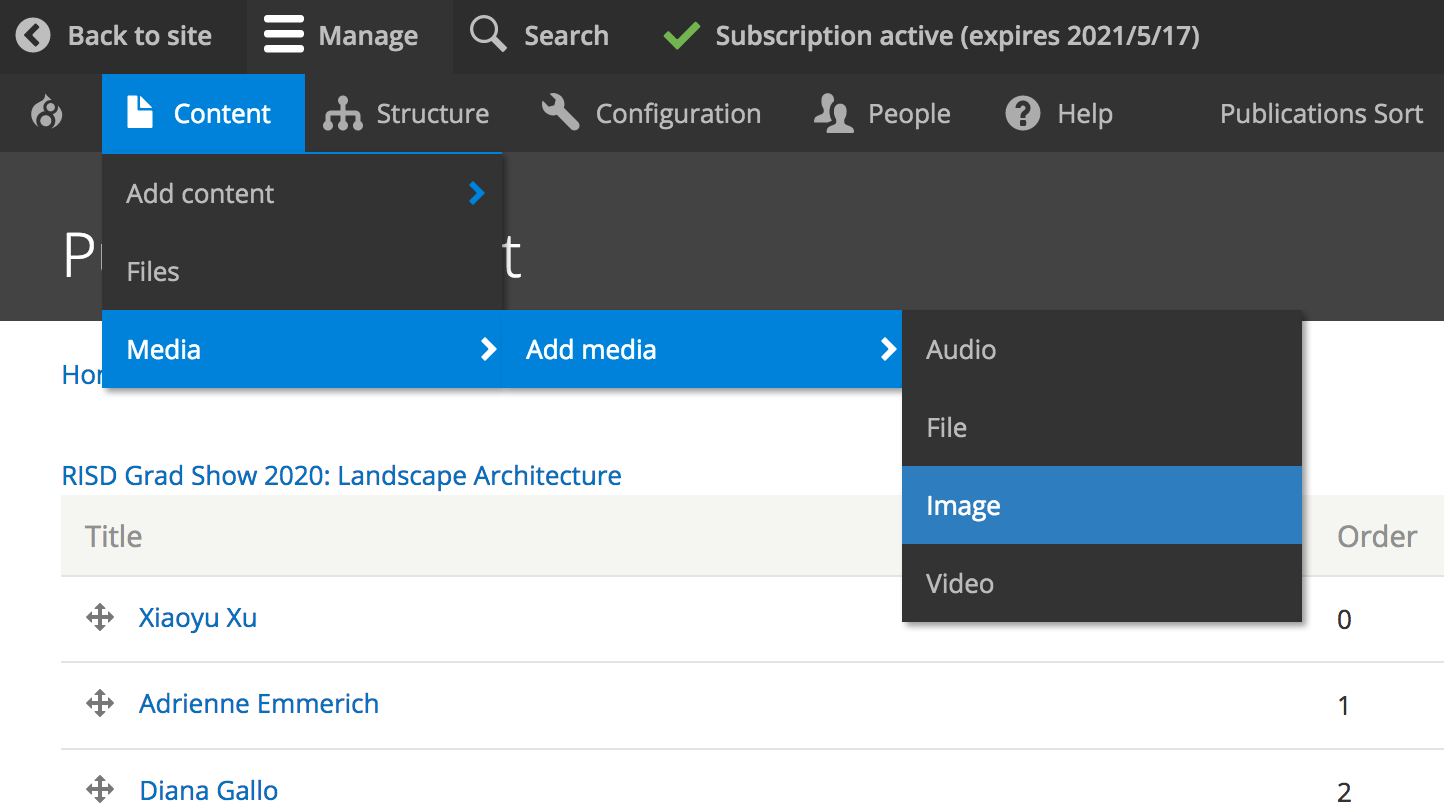
Add Media
Verify that the files are named properly
Click 'Browse' in the Image field to locate the file
(start with the 01 file and upload in order)
Image
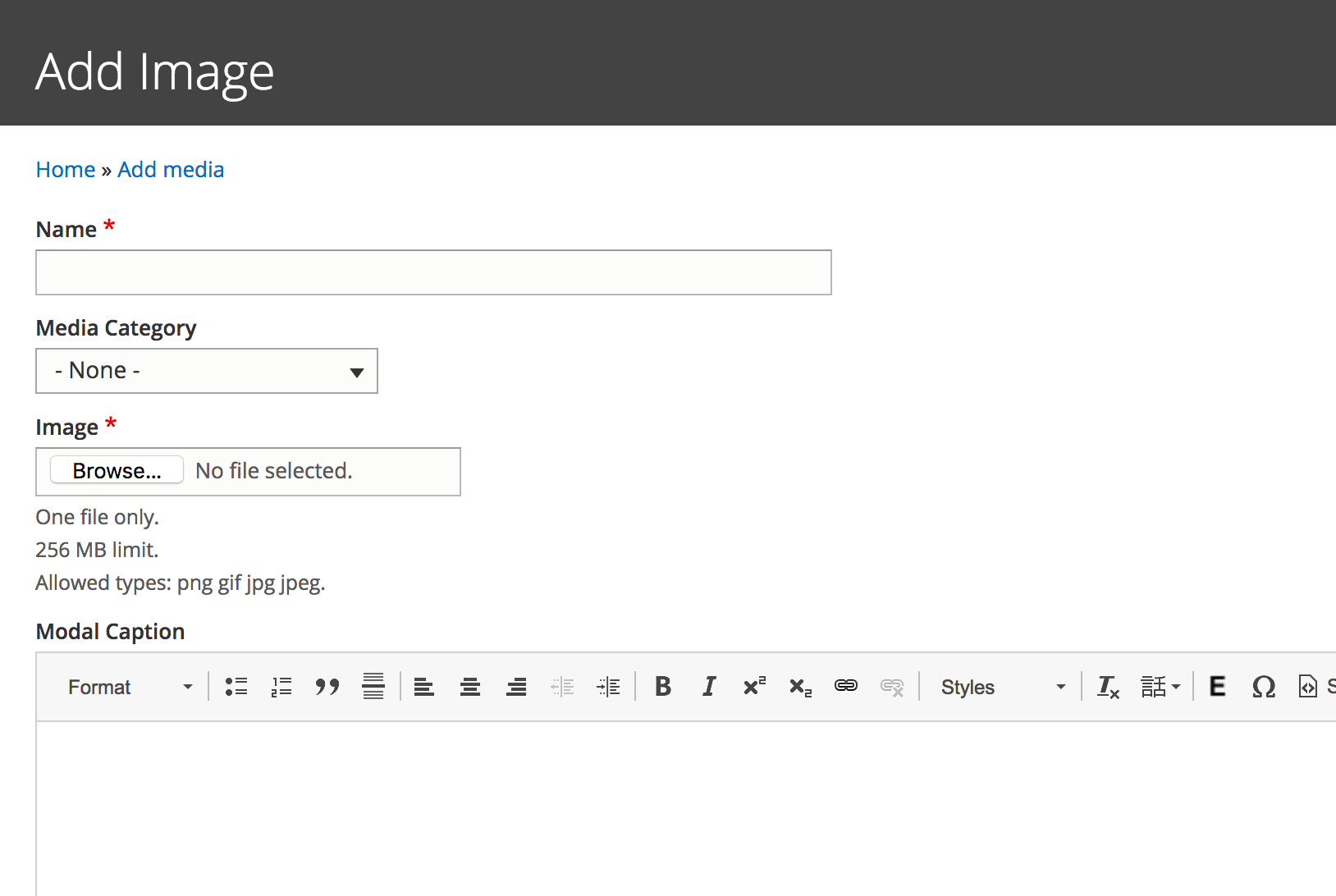
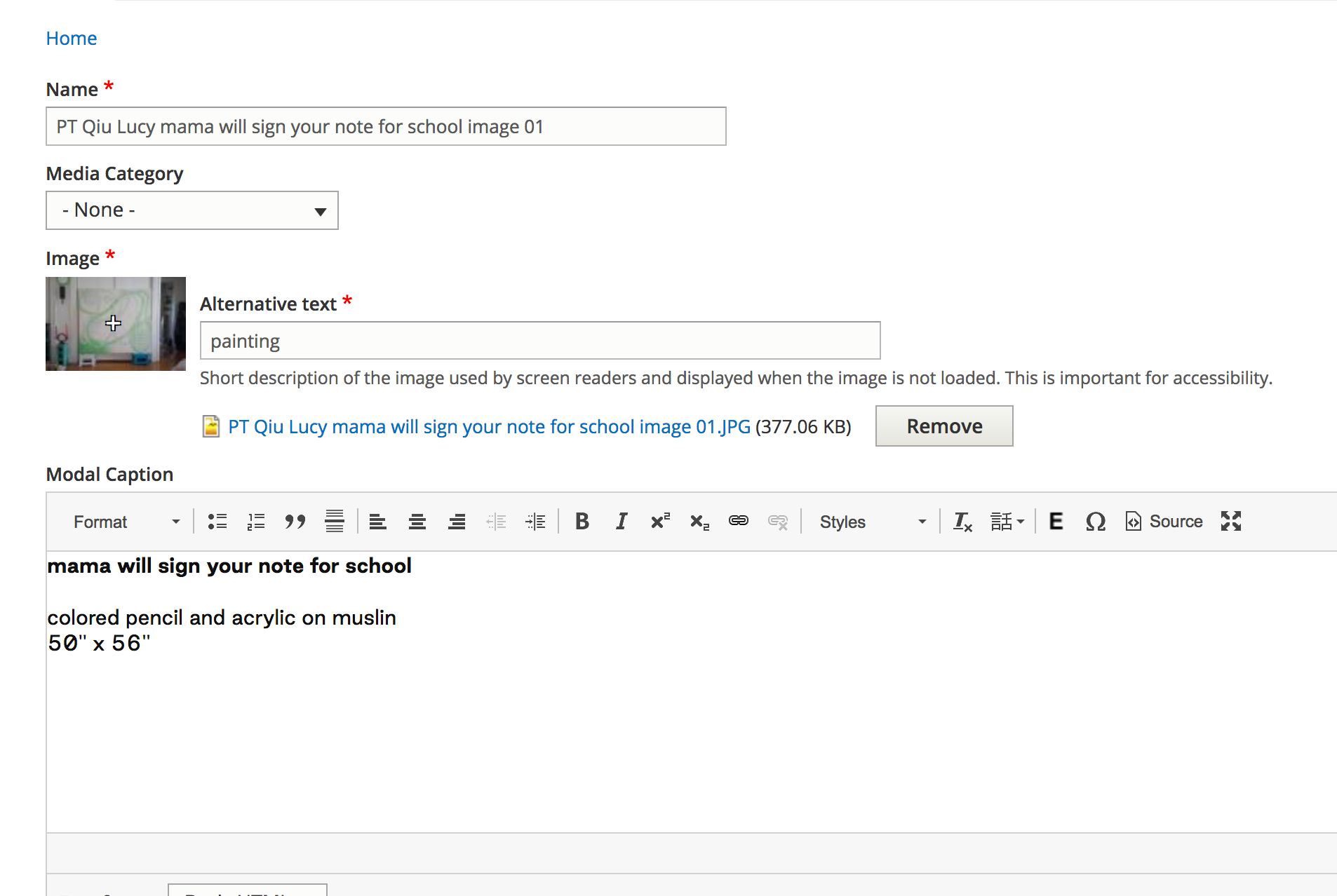
Complete required fields
Copy the file name into the 'Name' field
Add 'Alternative Text'
Add 'Modal Caption' text
To paste without formatting:
Mac: shift + command + v
PC: ctrl + shift + v
Modal Caption formatting:
'Title' bold, return
'Medium', soft return (keyboard: shift + return)
'Dimensions', return
'Description'
Click the 'Save' button to finish
Image
Formatting captions for 'Projects' template (Carousels)
Follow the steps above for uploading media
Before pasting the caption, do the following:
Click 'Text format' menu in the lower left and choose 'Full HTML'
Click the 'Source' button at the top of the wysiwyg panel
Copy/paste this code into the text panel
Click 'Source' again to save
Replace the formatted text and click 'Save'