Image

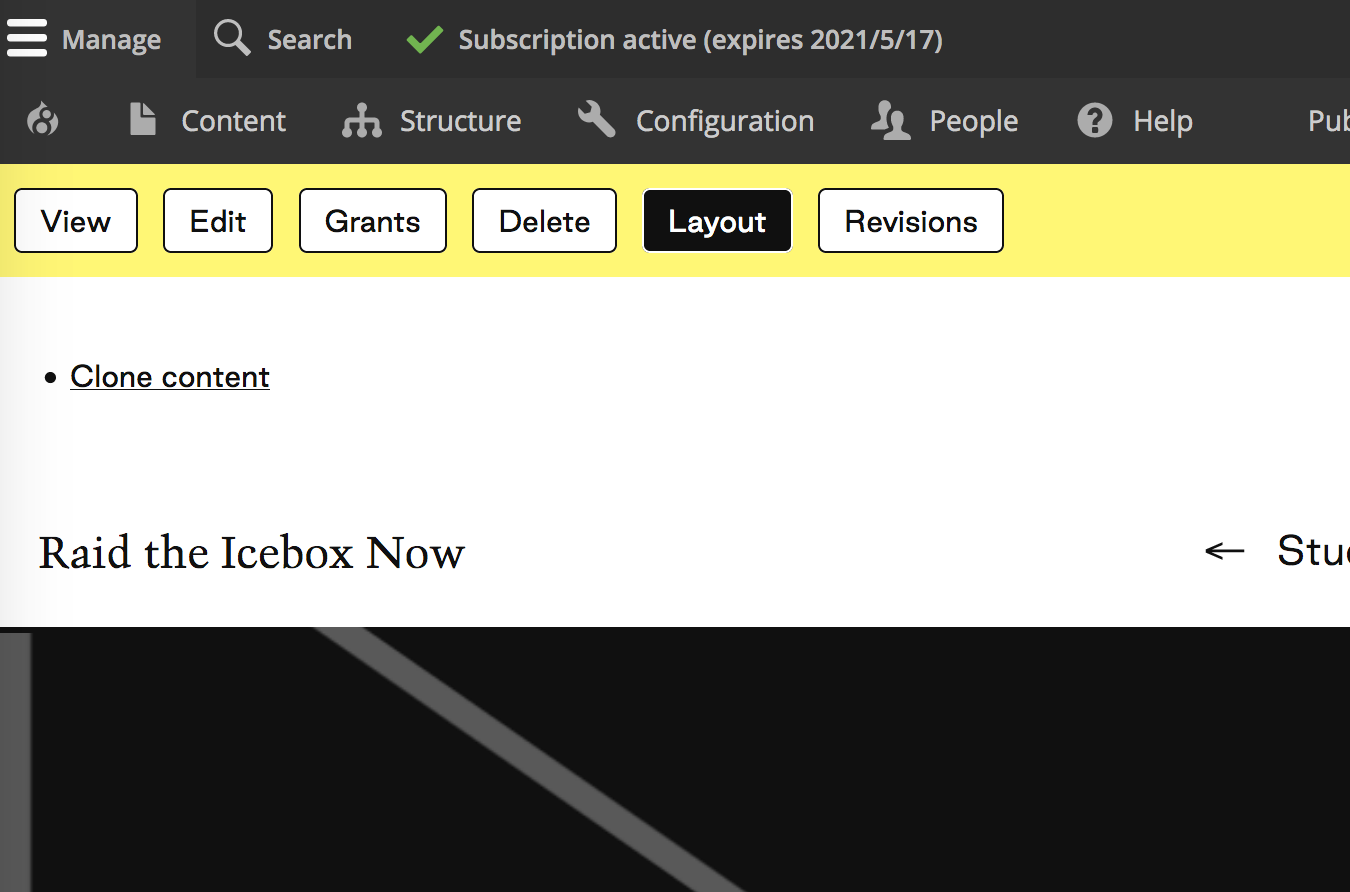
4. Projects Template
Select 'Layout' to begin editing
*Not 'Edit'
Image
Edit the 'Hero' section
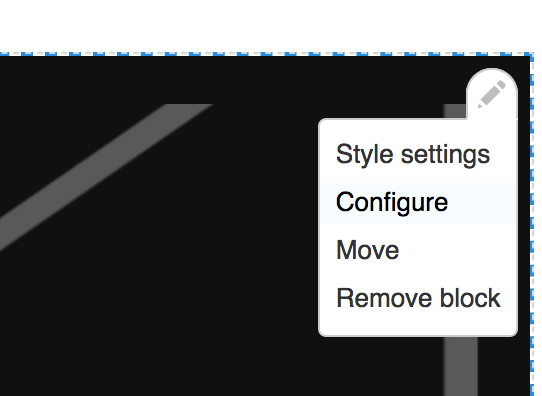
Click the pencil icon in the top right of the block
Select 'Configure' to edit block
Image
Insert Student Name
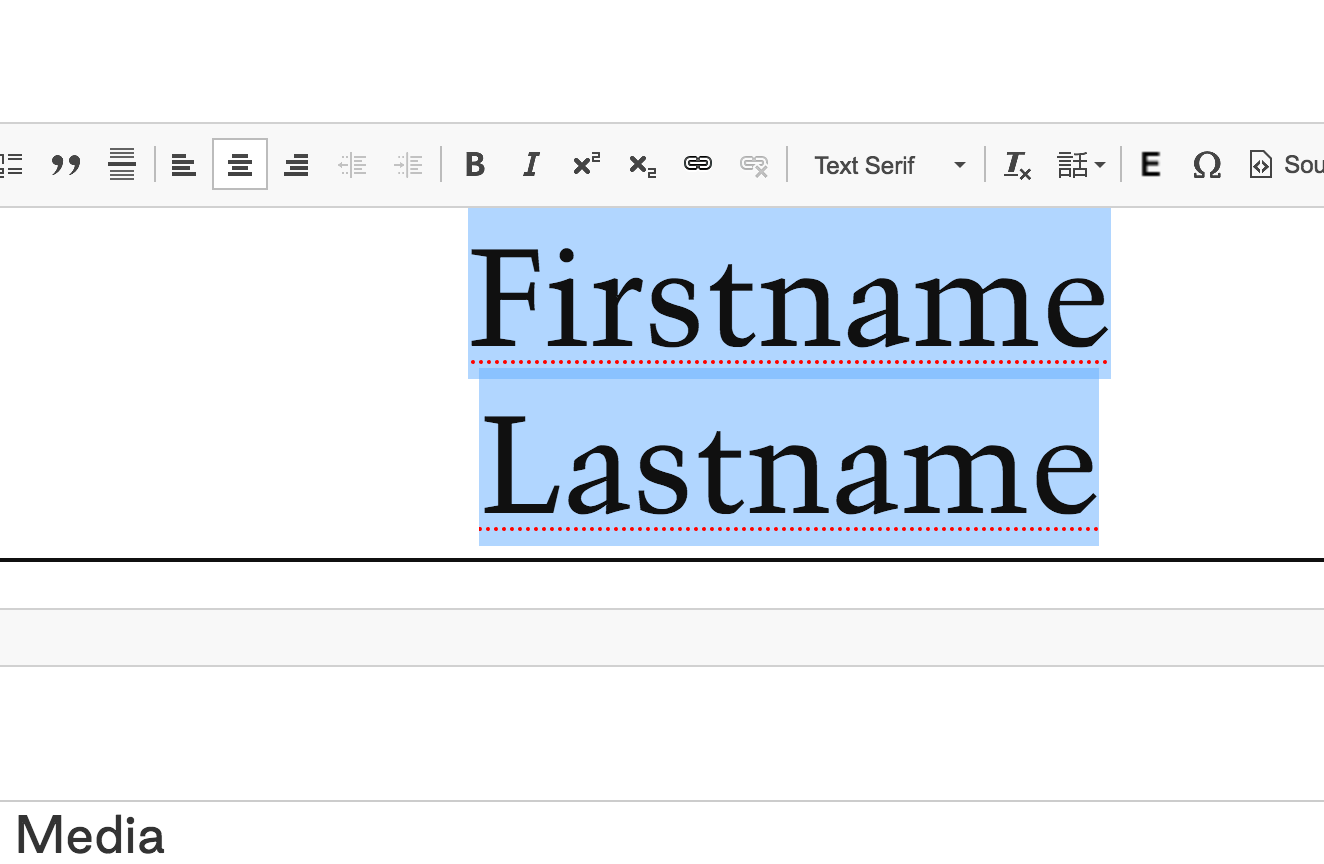
Replace 'Firstname Lastname' with the student name
To paste without formatting:
Mac: shift + command + v
PC: ctrl + shift + v
*Student name should be on 2 lines (first name, soft return, last name)
*Paste one at a time to keep formatting
Image
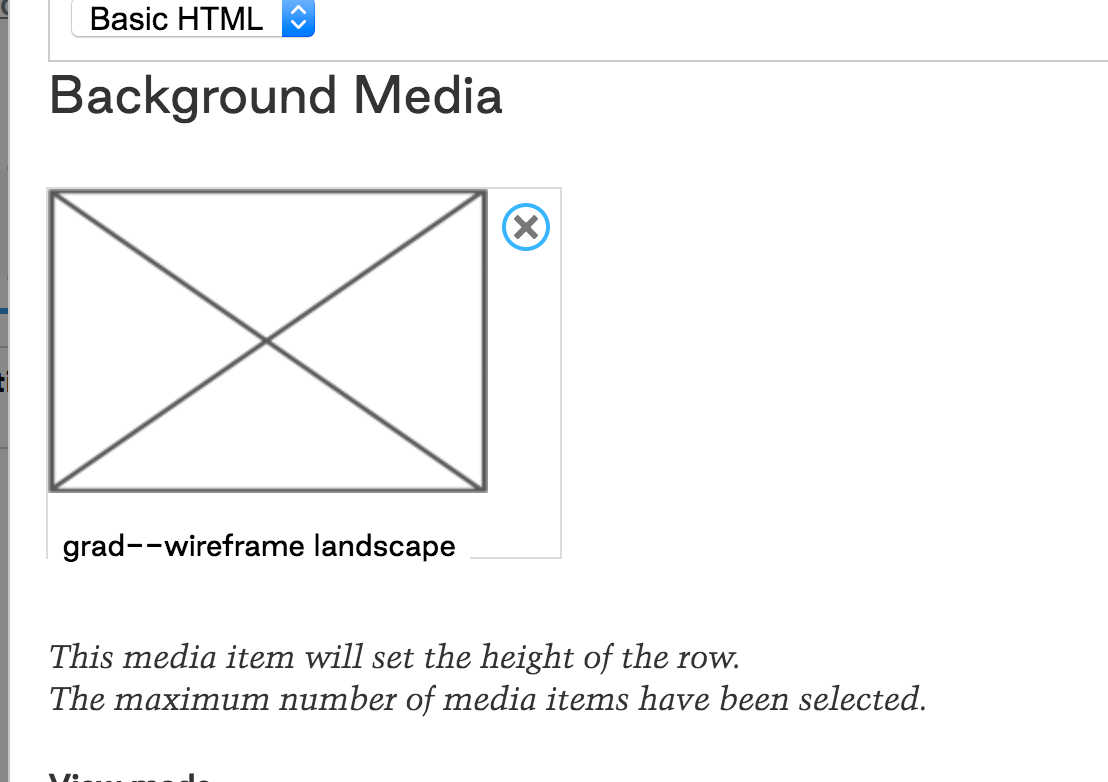
Insert Hero
Click 'x' to replace template image
Click 'Add Media'
Select image from media table
& click 'Insert Selected'
Click 'Update'
Image
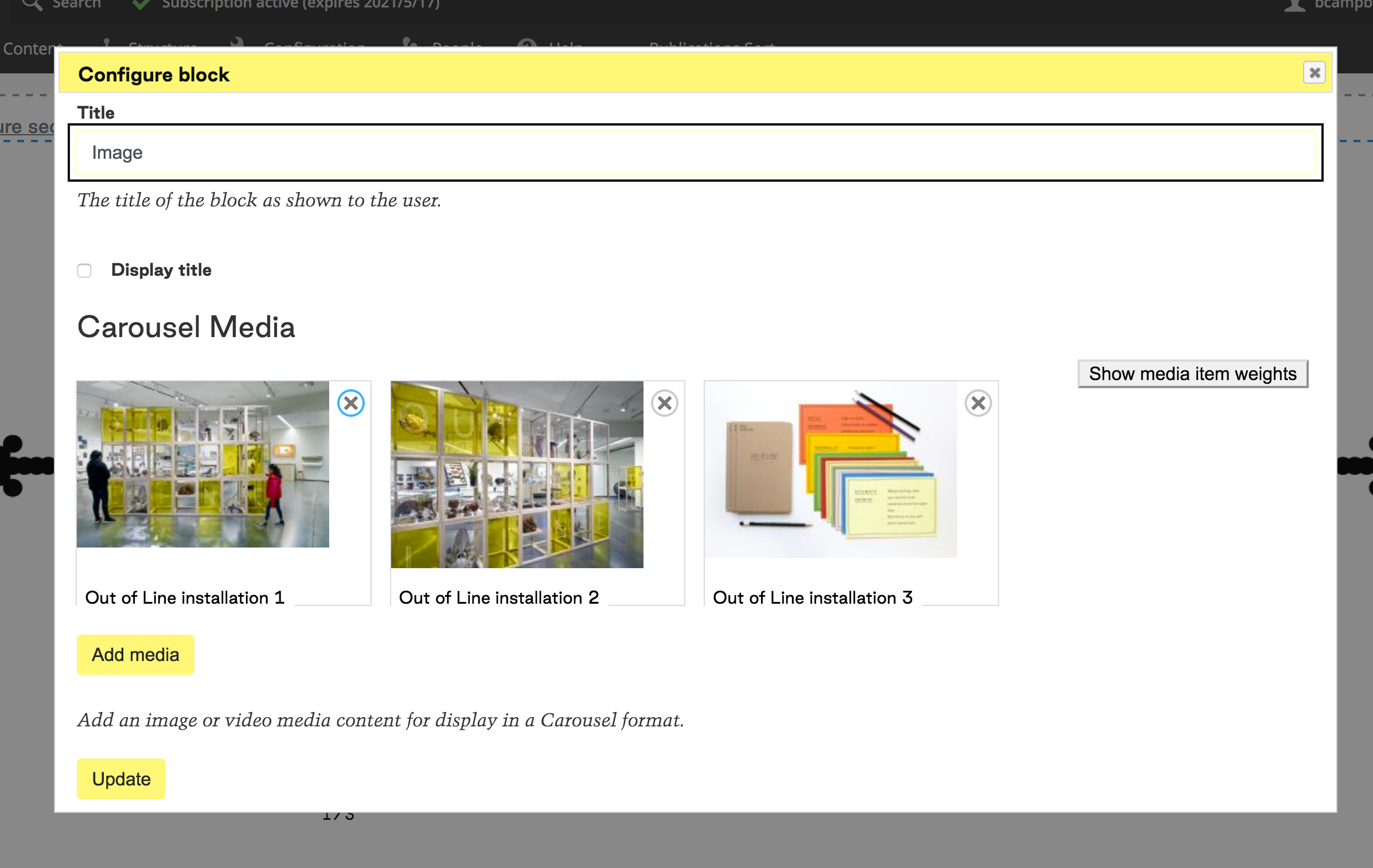
Insert Carousel Images + Videos
Click the pencil icon in the top right of the block
Select 'Configure' to edit block
Click 'x' to delete template images
Click 'Add Media'
Select 3 images or videos* from media table
& click 'Insert Selected'
Click 'Update'
*NOTE: Carousels cannot accept Vimeo embeds, so please upload carousel videos to the media table and insert using the above steps.
Image
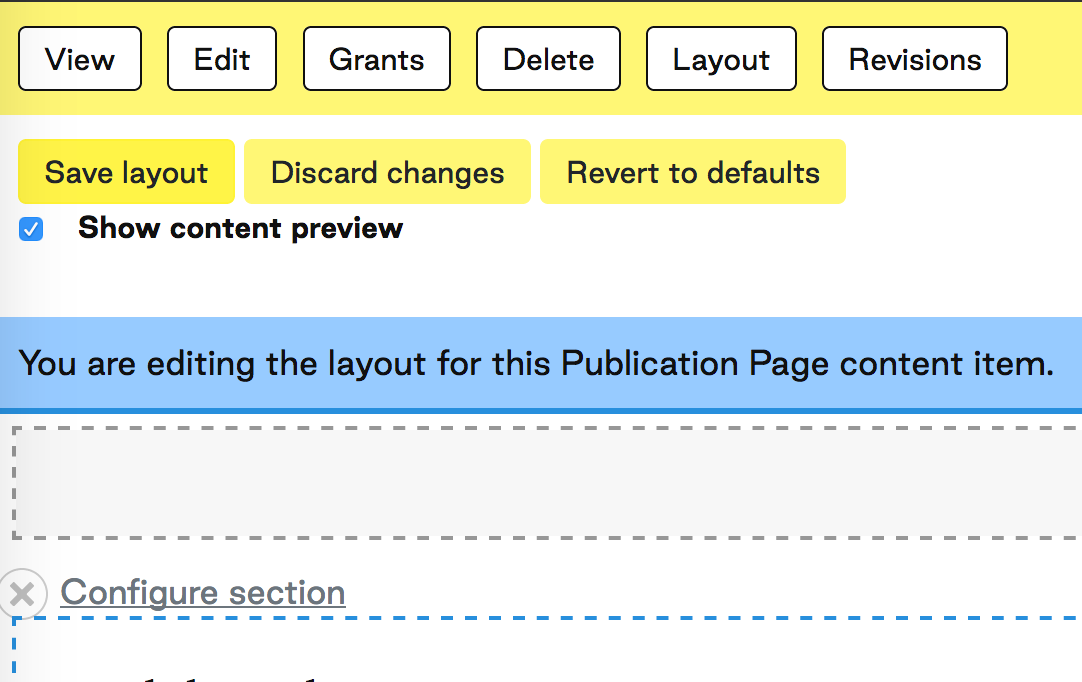
Save layout
Click the 'Save Layout' button
Image
Remove Unused Carousels
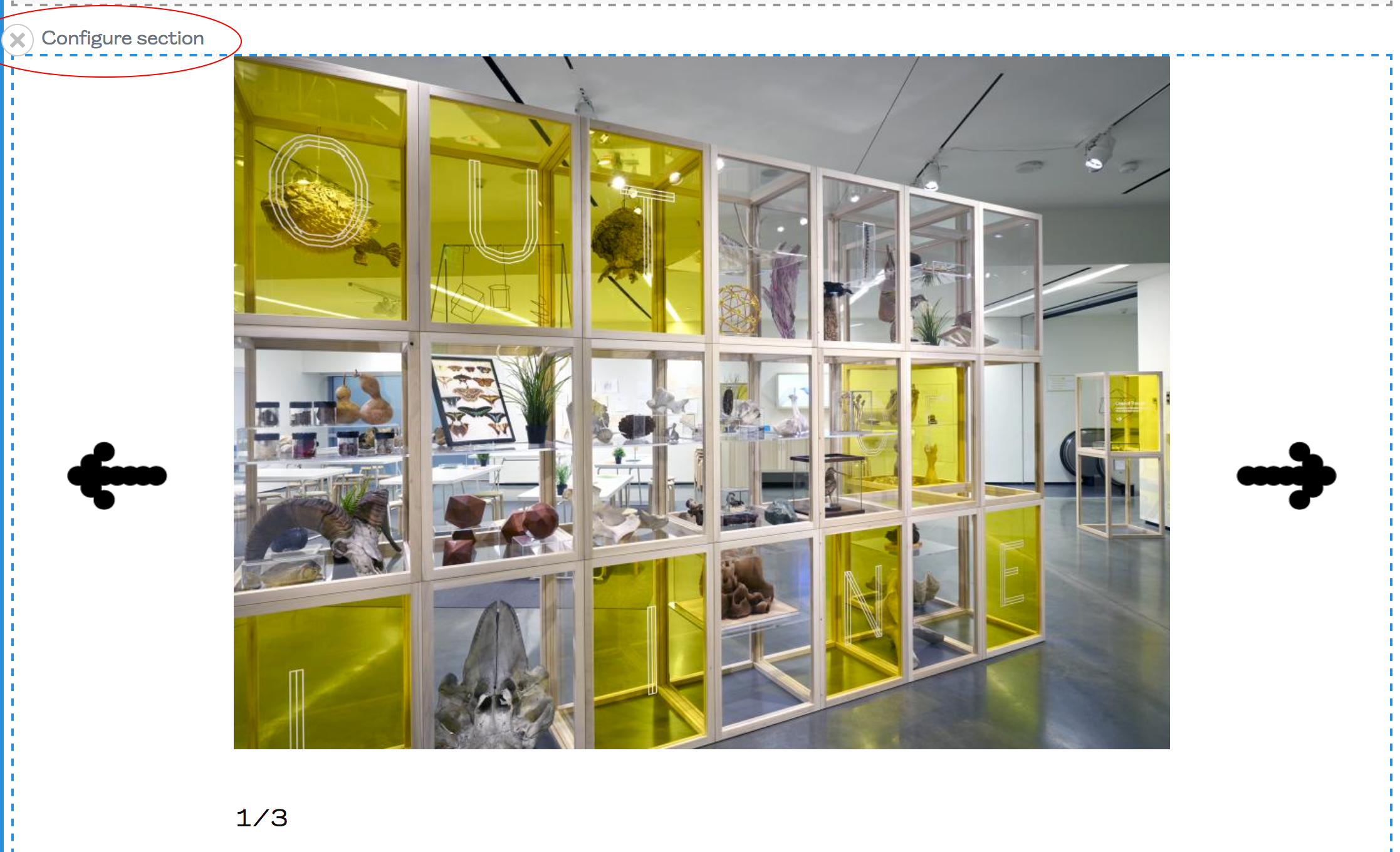
To remove unused carousels at the end of a page template, click the 'X' in the top left corner of the section (next to 'Configure section')
*If this causes a double black horizontal line to appear in the layout, use the process above to remove the extra line.
Image