Image

3. Works Template
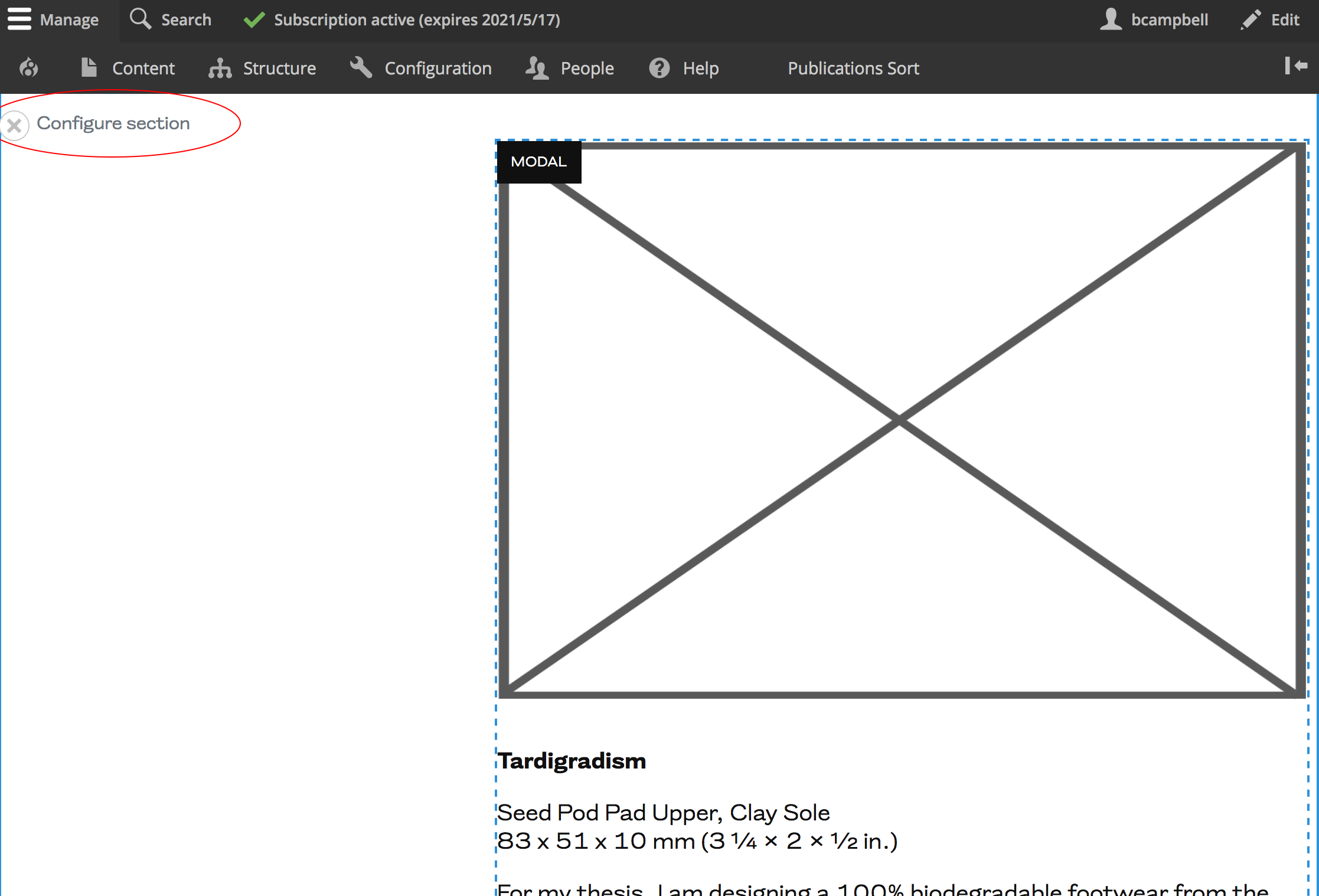
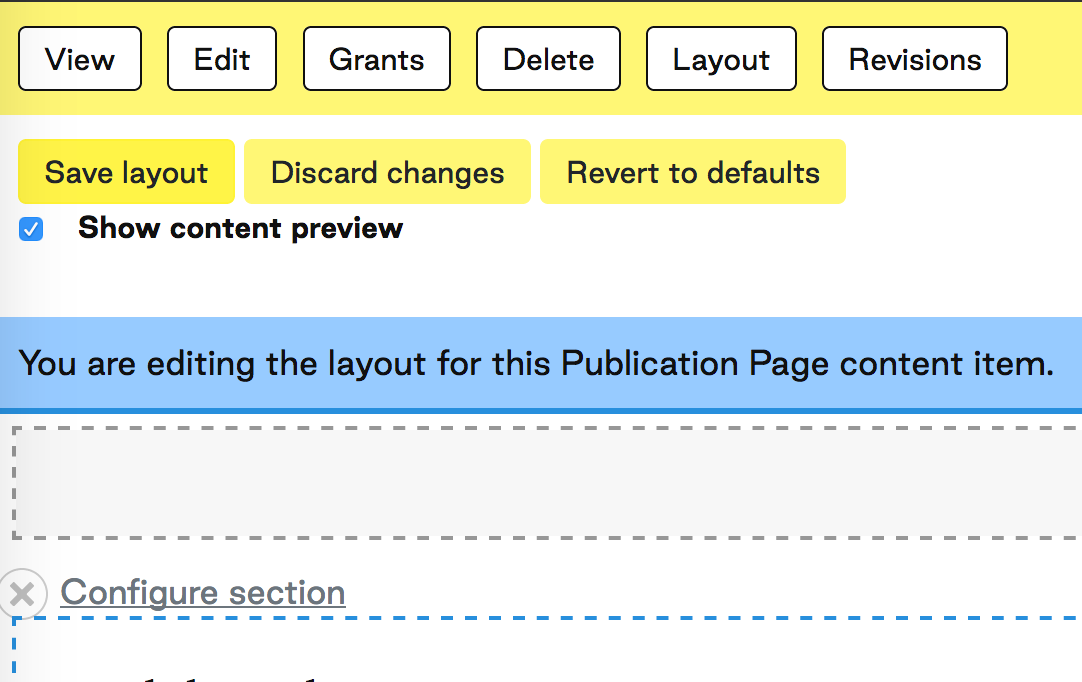
Select 'Layout' to begin editing
*Not 'Edit'
Image
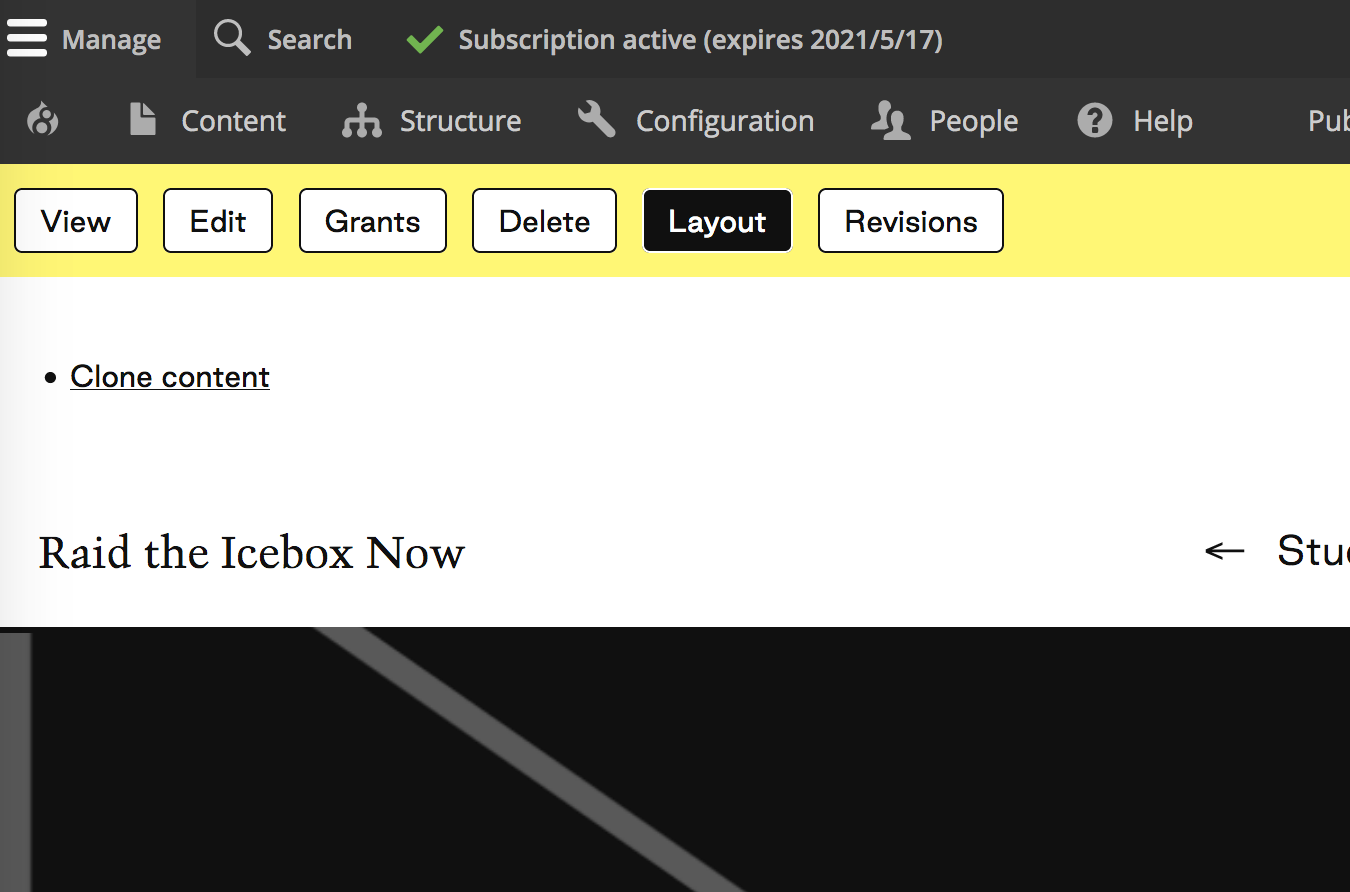
Edit the 'Hero' section
Click the pencil icon in the top right of the block
Select 'Configure' to edit block
Image
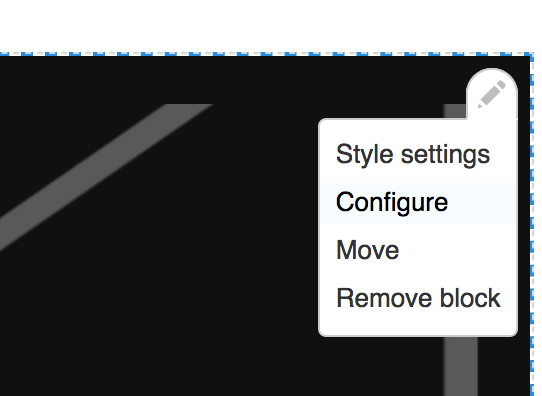
Insert Student Name
Replace 'Firstname Lastname' with the student name
*Student name should be on 2 lines (first name, soft return, last name)
*Paste one at a time to keep formatting
To paste without formatting:
Mac: shift + command + v
PC: ctrl + shift + v
Image
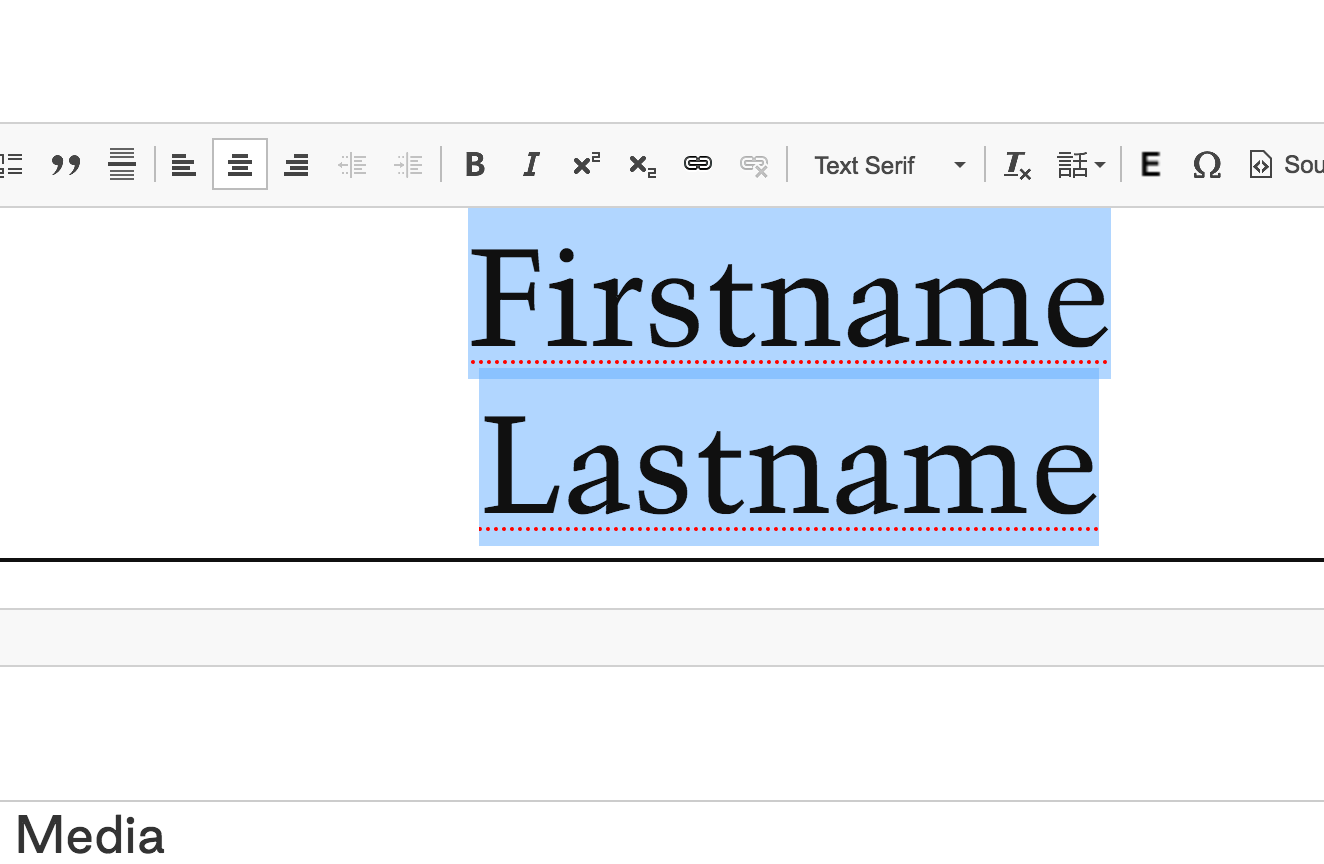
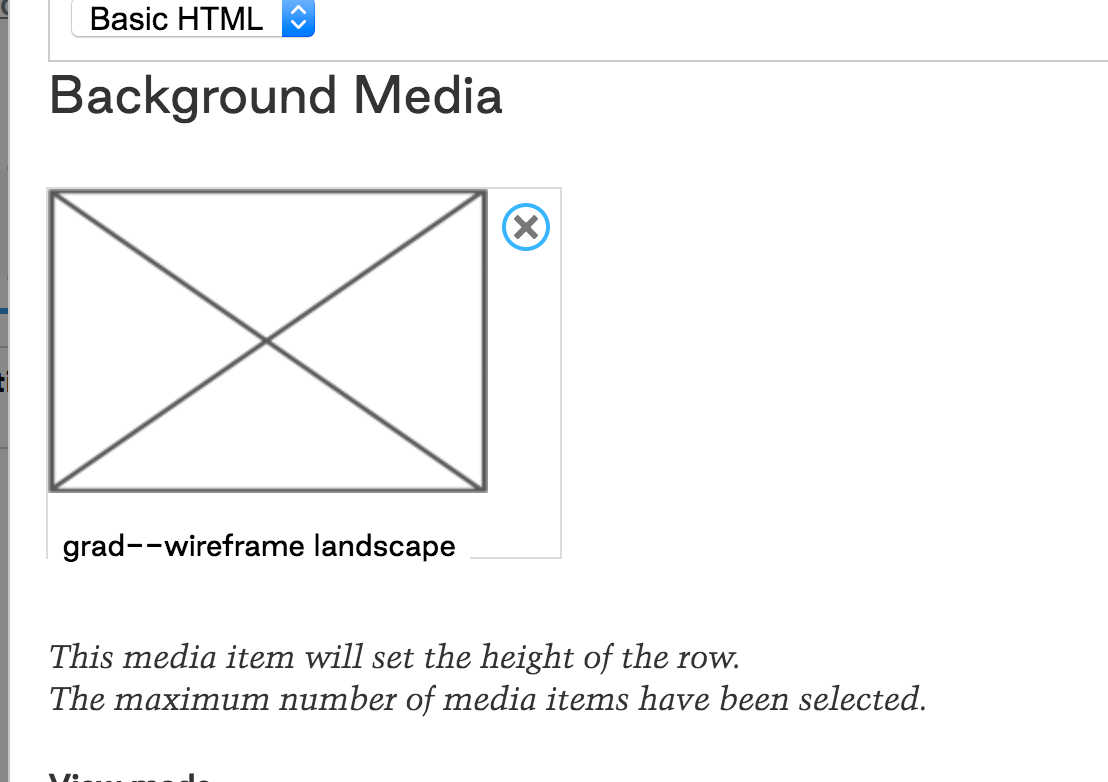
Insert Hero
In the 'Configure' window, click 'x' to replace Background Media image
Click 'Add Media'
Select image from media table
& click 'Insert Selected'
Click 'Update'
Image
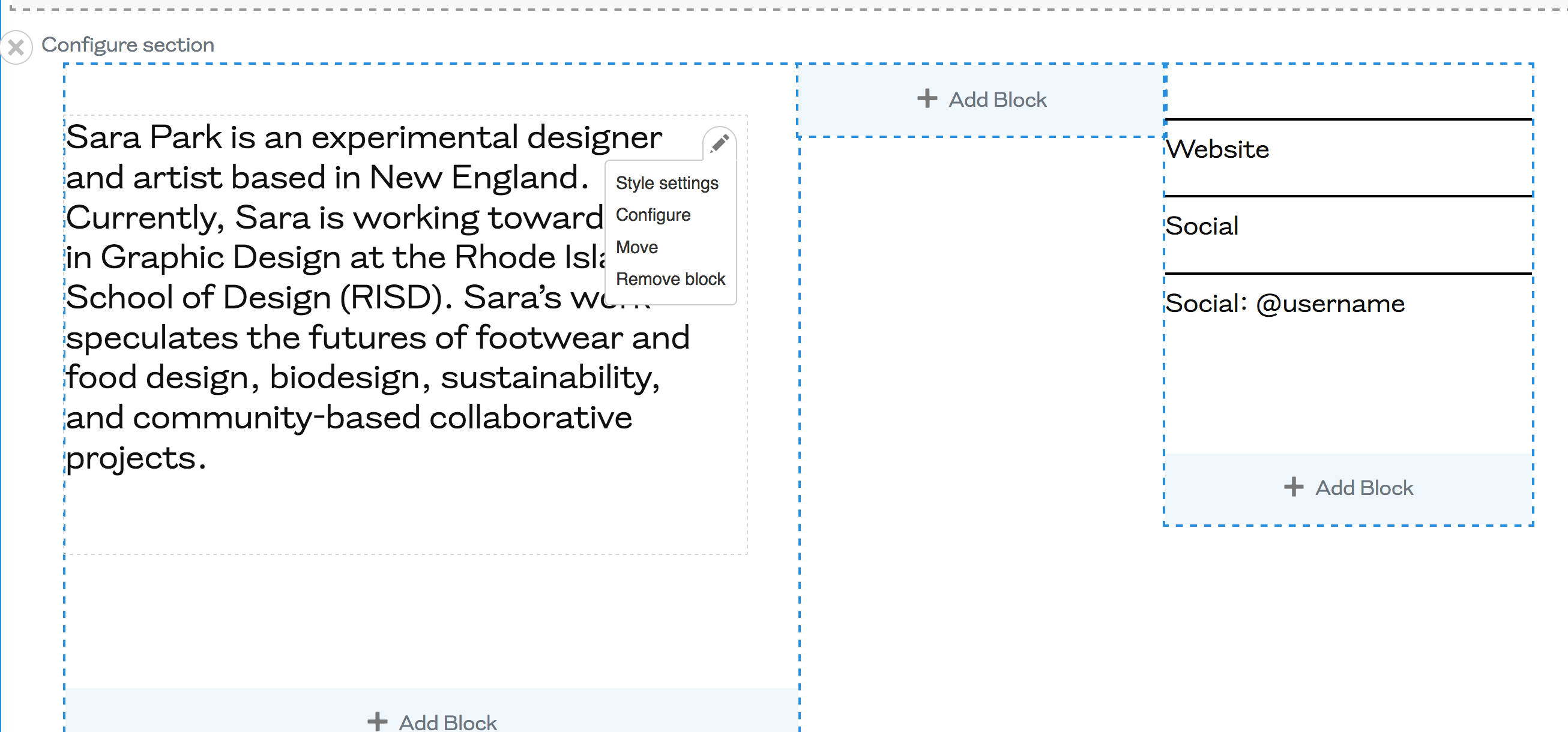
Insert Artist Statement Text
Click the pencil icon in the top right of the block
Select 'Configure' to edit block
Replace template text
Click 'Update'
To paste without formatting:
Mac: shift + command + v
PC: ctrl + shift + v
Image
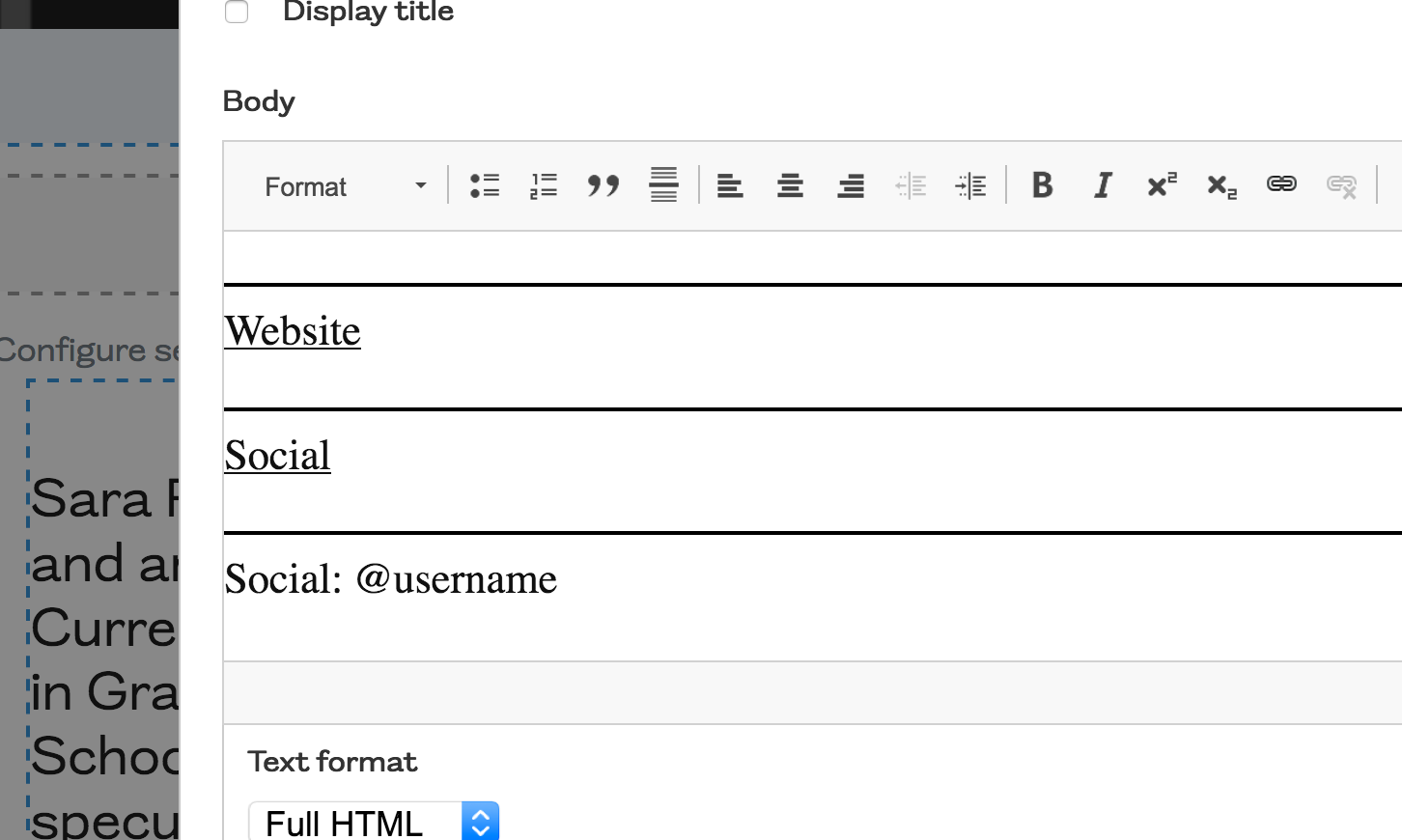
Insert Links
Click the pencil icon in the top right of the links block
Select 'Configure' to edit block
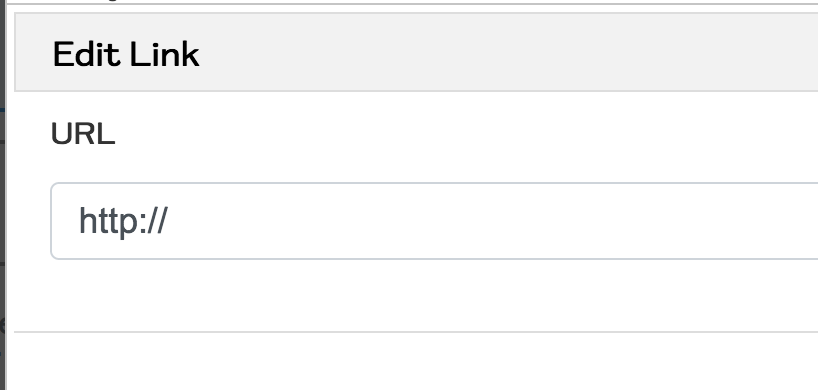
Double-click 'website' or 'social' to insert new urls
If student supplied unspecified social media handle, use the Social:@____ line (replace 'username', no link needed)
Delete any unused links and check that there are no extra lines. If so, delete any extra space after/before the link to remove
Click 'Update'
To paste without formatting:
Mac: shift + command + v
PC: ctrl + shift + v
Image
Image
Insert Image
Click the pencil icon in the top right of the block
Select 'Configure' to edit block
Click 'x' to replace template image
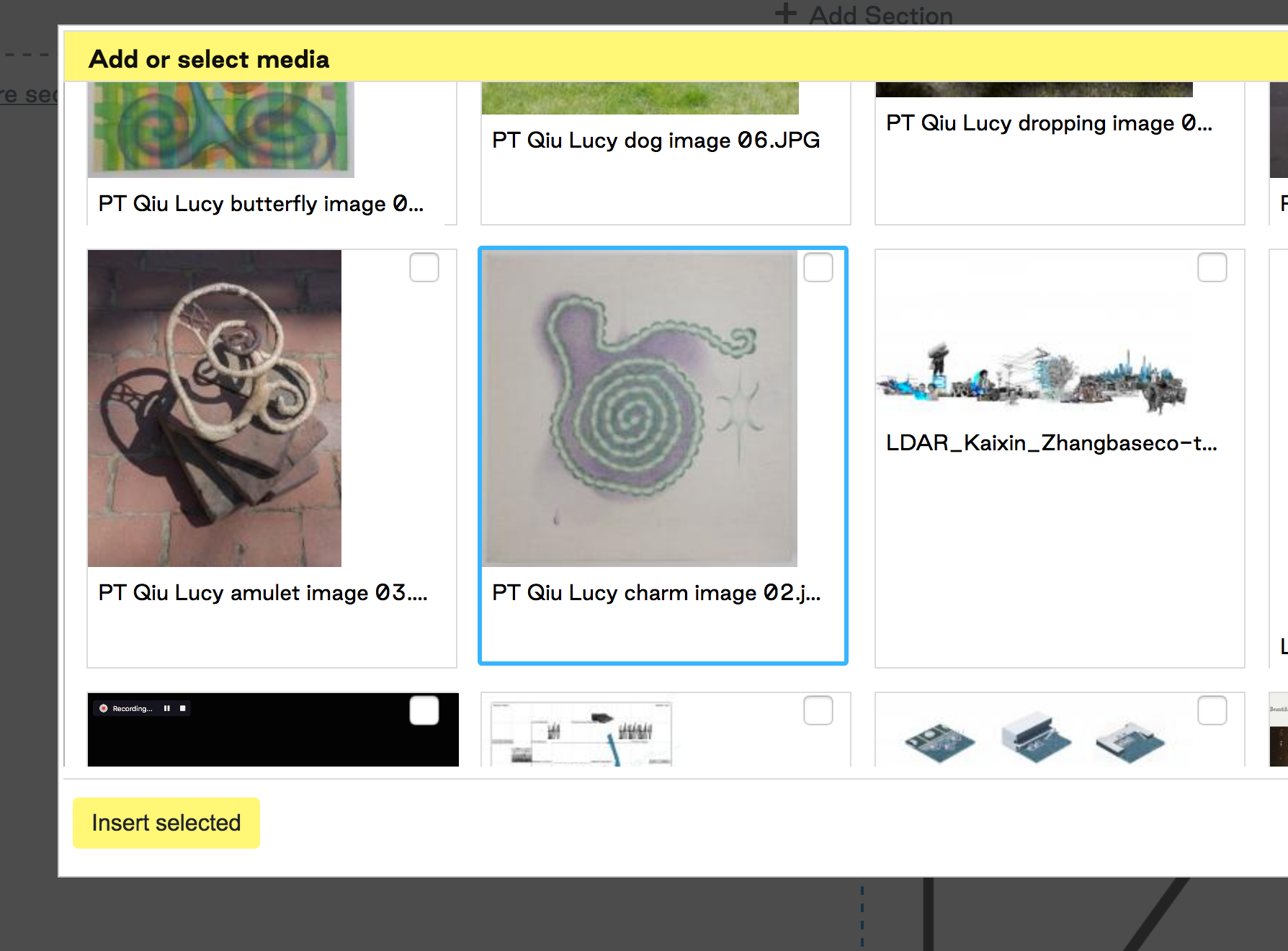
Click 'Add Media'
Select image from media table
& click 'Insert Selected'
Click 'Update'
Image
Insert Caption
Click the pencil icon in the top right of the caption block (images and captions are in separate blocks)
Select 'Configure' to edit block
Replace template text
Click 'Update'
To paste without formatting:
Mac: shift + command + v
PC: ctrl + shift + v
Caption formatting:
'Title' bold, hard return
'Medium', soft return (keyboard: shift + return)
'Dimensions', hard return
'Description'
Image
Insert Vimeo
Delete the image block that you will replace with the video by clicking the pencil icon and clicking 'Remove Block', click 'Remove Block' again to confirm
Click the '+ Add Block' button below the caption
Click the 'Basic block' button
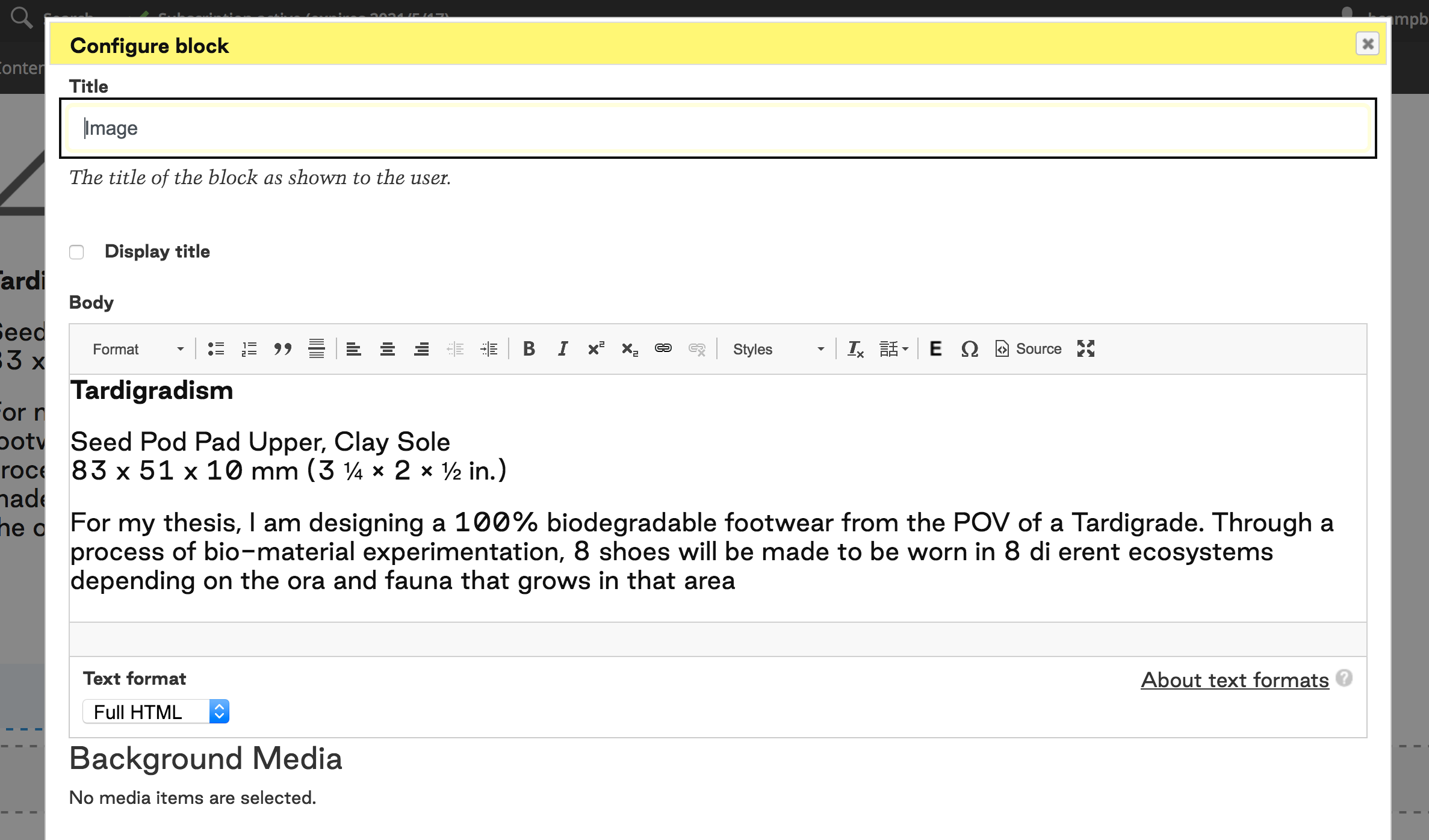
Add a title to the Title field, uncheck the 'Display Title' button
From the 'Text format' menu click 'Full HTML'
Click the 'Source' button from the menu
Paste the generic Vimeo embed code into the text field
Replace the numbers in the code after
https://player.vimeo.com/video/xxxxxxxxx
with your video's unique numerical code (see the 'Vimeo' tabs of the spreadsheet)
Click the 'Source' button again for the code to save
Click 'Add Block'
Click and drag the video block above the caption block
Click the pencil icon menu and click 'Style Settings'
Under the 'add a style' menu, choose 'component custom class'
Insert the following: py-0 mt-0
Click update
Save layout
Click the 'Save Layout' button
Image
Remove Unused Blocks
To remove unused blocks at the end of a page template, click the 'X' in the top left corner of the section (next to 'Configure section')
This will remove both the image and caption.
*If this causes a double black horizontal line to appear in the layout, use the process above to remove the extra line.
Image